
1.) Open Veeam Backup and Replication.
2.) Go to Backup Infrastructure.
3.) Under Service Providers, click Add Provider.

4.) For DNS name or IP address, type gateway.cc.multiline.com.au. Port is 6180. Don't forget to check Allow this Veeam Backup & Replication installation to be managed by the service provider. Click Next.

5.) On the Credentials tab, a Certificate Security Alert will pop up. Click Continue.


Main issue: Certificate validation failed
How to fix:
- Go back to the Service Provider tab. Make sure that you type the DNS name or IP address correctly. If gateway.cc.multiline.com.au is not working, you may try to use gw1.cc.multiline.com.au. Click Next. It should receive the certificate.

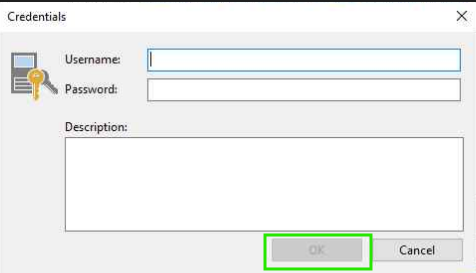
6.) Under Credentials, click Add. Use the Cloud Connect credentials that will be sent via email or ticket. Click OK.

7.) Then click Apply. It will establish a connection to Cloud Connect.
8.) A new tab will appear, Backup Storage. Select your Repository (Profile Orthodontics Cloud Connect). Click Apply.

9.) Once the results are checked and green. Click Next. Then Finish.

10.) You may now configure your off-site backups to point to your new Cloud Connect repository.